
Saturday, March 3, 2018

ADDRESS FOR EVERYONE


What are plus codes?

We were using Google maps for many years. But I have seen this new feature in Google maps App which is really useful to share the exact location and for navigation a few days back. 


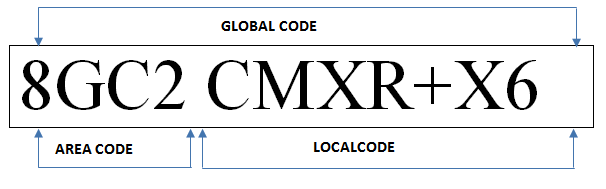
A plus code is like a street address for people or places that don't have one. Plus codes give addresses to everyone, everywhere, allowing them to receive deliveries, access emergency services – and more. 


Plus codes are short, simple, and easy to use: JF6H+97 Neyveli T.S, Tamil Nadu, India, for example. These codes can be used on Google Maps to get directions to a home or business. 

Benefits of Plus Code:


For the Individuals


With plus codes you can share any location – your home, a store, a meeting place – even if there are no streets. Using plus codes, friends, family, and service providers will find your home without having to rely on landmarks or asking for directions along the way. 


When you are travelling to an unfamiliar place, using a plus code can save you time by guiding you directly there. Plus codes can be safer, too, when you don’t want to ask strangers for directions. 


Find the plus code for a place

  • Open the Google Maps app.
  • Touch and hold a place to drop a pin on Google Maps.
  • At the bottom, you’ll see an address or a plus code. Tap this section to find all details of the location and copy the plus code


  • Share a plus code

    You can share a plus code any way you want, a few examples include:
    • In a text message in any app.
    • Talking on your phone.
    • On a piece of paper. 


    Find a place using plus codes

    To search for a place using a plus code, use the plus code like an address.

    • Open the Google Maps app.
    • At the top, tap the search box and type the plus code and city. 

              For More Details: https://plus.codes/


Saturday, August 19, 2017

Stay Connected Always


Stay Connected with your Friends..


No fear of losing your contacts any more, you are smarter than your smart phone. It is very easy to set up your android smart phone to keep updating your contact details. The trick is save your contacts in in your Gmail account. You sync your mobile with that account. That’s all..

Here are steps to follow to save your contacts using your Android phone:

STEP: 1
  • Open Contacts
  • Hit menu > Import/Export
  • Export to SD card, then hit OK to confirm.

After a few moments, your data will be exported.
Next, you delete all contacts, to prevent confusion
  • In Contacts, hit menu > delete > Select All > delete.
(If you’re concerned about deleting your contacts before re-importing them, you can always import them, and then resolve the duplicates manually)


STEP: 2

Import all the contacts to your Google account
  • Hit Import/Export again
  • Select Import from SD Card
  • Select Save contact to… (your Google account) NOT phone
After a few moments, your data will be re-imported, and synced with your Google account online. Note that it may take up to a few minutes for the contacts to start appearing in your Google account.
If you mistakenly import multiple times, you may end up with duplicates in your online Google account. To fix this, simply open more > Find and Merge duplicates from your Contact manager.
You should now have all of your contacts stored on your Google account. Every device associated with that account will have access to those contacts.